
Jamhuri ya Muungano wa Tanzania
Ofisi ya Rais, Menejimenti ya Utumishi wa Umma na Utawala Bora
Electronic Marking System (EMaS)

EMaS helps councils and schools run exams end-to-end: organize data, capture marks, approve results, and publish reports. This page highlights what matters most—modules, roles, and the standard workflow.
A secure digital platform for exam management and result processing—from student data to final reporting.
Deliver reliable results faster—while keeping access controlled and auditable.
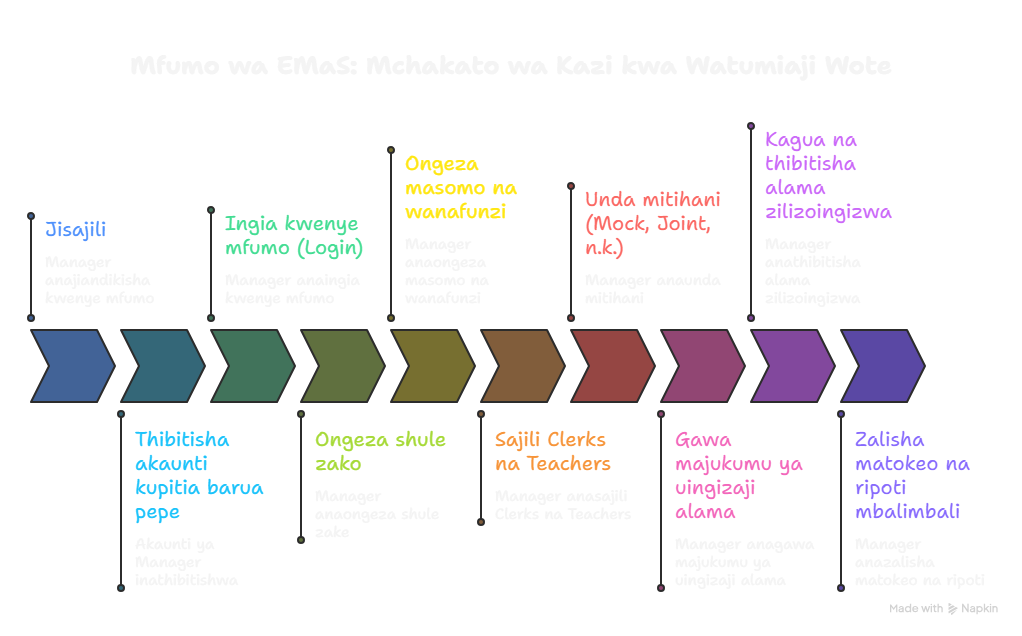
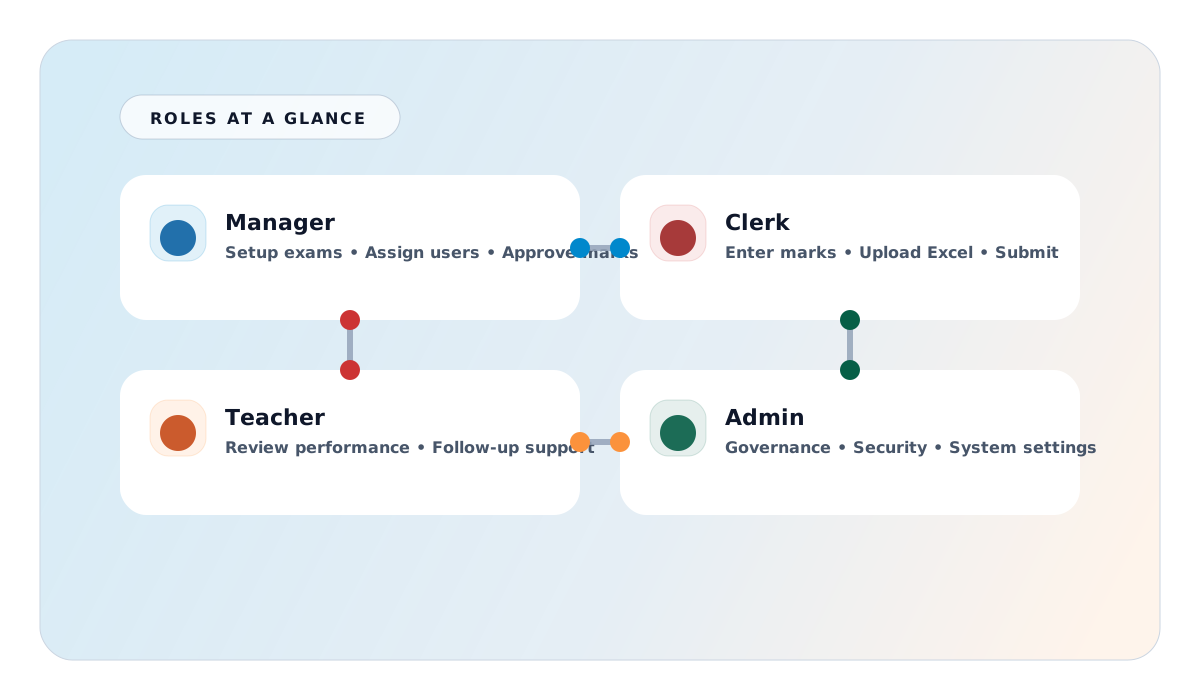
EMaS is structured around clear responsibilities—so data entry, approvals, and reporting stay consistent.
A quick map of the modules you’ll use most.
Registration and verification for Council and School Managers.
Role-based access so users only see what they’re allowed to.
Manage schools, students, and subjects—manual or bulk import.
Create exams, set schedules, and allocate subjects.
Enter marks or upload Excel, then submit for approval.
Generate PDFs/Excel and performance analytics.
A simple lifecycle from setup to reporting. Your steps depend on your role.
Register → verify → login → set up data → assign users → create exams → approve marks → publish reports.
Get assignment → login → select class/subject → enter or upload marks → submit for approval.
Login → review outcomes → use analysis to support learning improvement.
Login → manage users → configure settings → monitor system governance and security.

Built-in controls protect student data and keep changes accountable.
If you need support, visit the Contact page or reach our support team. We are ready to help you succeed.
Send an email to support@emas.go.tz for technical help and inquiries.
Call +255 123 456 789 during business hours (Mon–Fri, 08:00–17:00).
Use our online form for quick assistance and we will respond promptly.